What I found under a DIY website rebuild (and what it cost to fix)
Project Notes is a series about real client projects: what the site looked like, what I found underneath, what I did, and what it cost. Clients stay anonymous unless they've said otherwise. Anyone can build a website now. That's true, and mostly good. This spring, the owner of a property management company moved his website…
Project Notes is a series about real client projects: what the site looked like, what I found underneath, what I did, and what it cost. Clients stay anonymous unless they’ve said otherwise.
Anyone can build a website now. That’s true, and mostly good.
This spring, the owner of a property management company moved his website off an industry platform and rebuilt it himself on WordPress.com. Parts of it started as an AI-built prototype, the kind tools like Lovable, Bolt or Cursor will produce in an afternoon. It looked unfinished but it held together. It loaded in 1.3 seconds on a phone, and Google’s own Lighthouse check gave the homepage a perfect SEO score.
But it still wasn’t working the way he needed it to. And it most defintely was not a quick or easy job. He told me he had spent hours after work for days to try and get it working right. Each session became a deep dive into learning a new topic just to make one “simple” fix.
At a glance
The site: a property management company’s website, rebuilt by the owner on WordPress.com after leaving an industry platform
– The site: a property management company’s website, rebuilt by the owner on WordPress.com after leaving an industry platform
– What I found: about 40 old page addresses that no longer led anywhere, dozens of links that went nowhere, and text and images that failed basic accessibility checks
– What I did: 36 redirects, every dead link and button repointed, an accessibility pass across all 54 pages and posts, and a new contact form tested end to end
– Cost and time: $640 for about eight hours of work, live about a week after I started
What I found
About 40 old page addresses stopped working
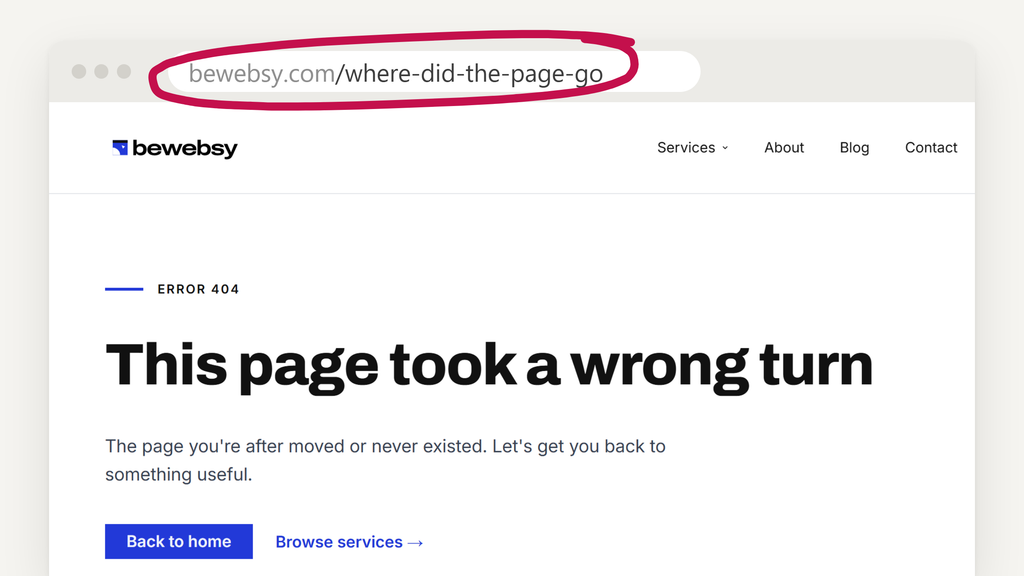
When a site moves to a new platform, its pages usually get new addresses. Unless someone maps each old address to its new page, the old ones stop working. That map is a set of redirects, and nobody had made one. Pages that never got rebuilt on the new platform were simply gone. They can be rebuilt later, but the traffic and rankings they’d earned may not come back with them.
Google Search Console still had about 40 of the old site’s addresses on file. Five town or location pages. The owner and tenant FAQs. Four calculators. And the multi-family page, which had been the old site’s best page after the homepage: 52 clicks from Google between September and May, at an average position of 8.2.
The old homepage linked to 33 pages. After the move, 6 of those addresses still worked.
So anyone arriving from an old Google result, a bookmark, or another site’s link landed on a “page not found” error. Nobody notices this kind of broken. The site seems to work for its owner, because the owner never visits the old addresses.
Dozens of links were broken
Two of the main service pages carried 22 links that still pointed at the AI prototype’s placeholder pages. The prototype’s preview address was right there in the links. They looked like buttons. They went nowhere.
It wasn’t only those two pages. Across the site, 18 buttons led to nothing or to an old form on another service. One homepage button led straight to an error page. And WordPress.com gives every site a temporary address while it’s being built: 13 of the menu links still pointed at that temporary address instead of the real domain.
None of this shows up in a preview. You’d only find it by clicking every link and reading where it goes.
Text and images failed basic accessibility checks
My first review found 72 color contrast failures and 10 of 16 images with no description.
Most of the contrast problem came from two choices. The body text was a light gray, at a contrast ratio of 4.0 to 1. The accessibility standard most rules point to, WCAG AA, asks for at least 4.5 to 1. And more than 100 highlighted words in headings were orange or teal on a light background, at 2.0 to 2.9 to 1.
For most visitors, gray text is just tiring to read. For someone with low vision, or anyone reading a phone outside, it’s the difference between reading the page and leaving it. An image with no description is a blank to a screen reader, and to Google.
Expect to hear more about this. A 2024 Justice Department rule on web accessibility requires state and local government websites to meet WCAG 2.1 AA, with the first deadline in April 2027. That rule doesn’t cover small businesses, but it’s a clear sign of where the standard is headed.
What I did
Redirects first, because every day without them sends people to dead ends. I matched each old address to its closest new page: 36 redirects in all. One lost page mattered enough to a specific group of his clients that I rebuilt it at its old address instead. I priced that page separately.
Then the links. I removed the 22 dead prototype links, sent the 18 stray buttons to the contact page, moved the menu onto the real domain, and added Contact to the header.
Then accessibility. I darkened the body text from light gray to charcoal, and changed the highlighted heading words to a dark teal that clears the standard comfortably (about 7 to 1). Menu, footer and link colors got the same treatment. I wrote descriptions for 18 image spots across 11 pages, and left purely decorative images blank on purpose, which is what screen readers expect. A re-scan of all 54 pages and posts found one failure left: a search button inside a third-party listings widget that I can’t restyle.
Then the contact details. I added the business address and phone to the footer, pointed the email link to the correct address and gave the header a clear “Call Now” button.
A few smaller fixes along the way. A popup plugin had added six hidden H1 headings to every page, so the homepage had seven top-level headings. Blog posts had none. Now every page and post has one clear main heading, which is easier for Google and AI tools to read. The homepage also got about 23% lighter (283 KB to 217 KB).
What it cost and how long it took
$640, for about eight hours of work. Work started on a Monday. The site was live the morning of the following Tuesday, about a week later.
The site he built is still the site he has. Now it works.
What this means for you
If you built or moved your own website in the last year or two, run these four checks. They take about fifteen minutes.
1. Visit your old addresses. Look up your old site on the Wayback Machine and click five of your old page links. If you land on “page not found” instead of the matching page on your new site, you need redirects.
2. Click every button and menu link on your homepage, on your phone. Watch the address bar. Every link should stay on your own domain and land on a real page.
3. Send yourself a message through your own contact form, from a different email address. Then check that the notification actually reached your inbox. “Message sent” on the screen only means the form worked. It doesn’t mean the email did.
4. Run a free accessibility check on your homepage. Paste your address into WAVE (wave.webaim.org). Red contrast errors and images with no description are the two to fix first.
If any of those turn something up, the website health checklist walks through the rest of what to look for.
You can fix all of this yourself. And if you’d rather have it handled, a Website Fix or Refresh covers lost pages, broken links, forms and readability, fixed and verified.